Configure GraphQL client endpoint and HTTP headers
- Launch GraphiQL.
- Click Edit HTTP Headers.
 The Edit HTTP Headers window appears.
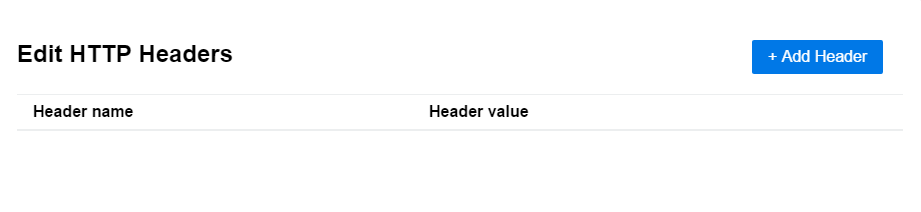
- Click Add Header.
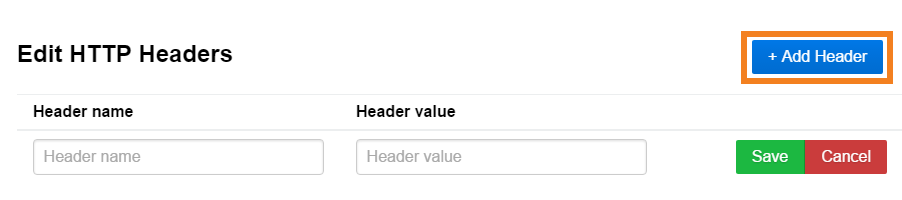
- Enter X-AUTH-EMAIL in the Header name field and your email address registered with Cloudflare in the Header value field, and click Save.
- To configure authentication, click Add Header. You can use Cloudflare Analytics API token authentication (recommended) or Cloudflare API key authentication.
- Token authentication:
Enter Authorization in the Header Name field, and enter Bearer {your-analytics-token} in the Header value field, then click Save.
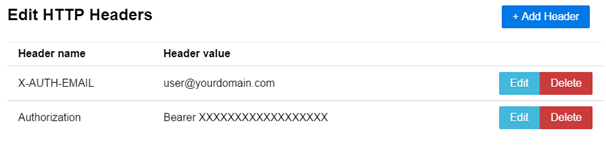
- Key authentication:
Enter X-AUTH-KEY in the Header Name field, and paste your Global API Key in the Header value field, then click Save.
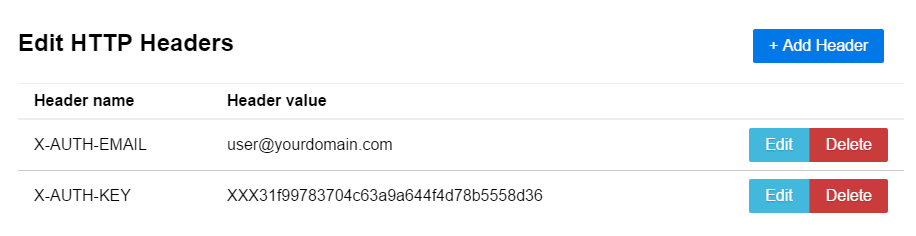
- Token authentication:
Enter Authorization in the Header Name field, and enter Bearer {your-analytics-token} in the Header value field, then click Save.
- Click anywhere outside the Edit HTTP Headers window in GraphiQL to close it and return to the main GraphiQL display.
- Enter
https://api.cloudflare.com/client/v4/graphqlin the GraphQL Endpoint field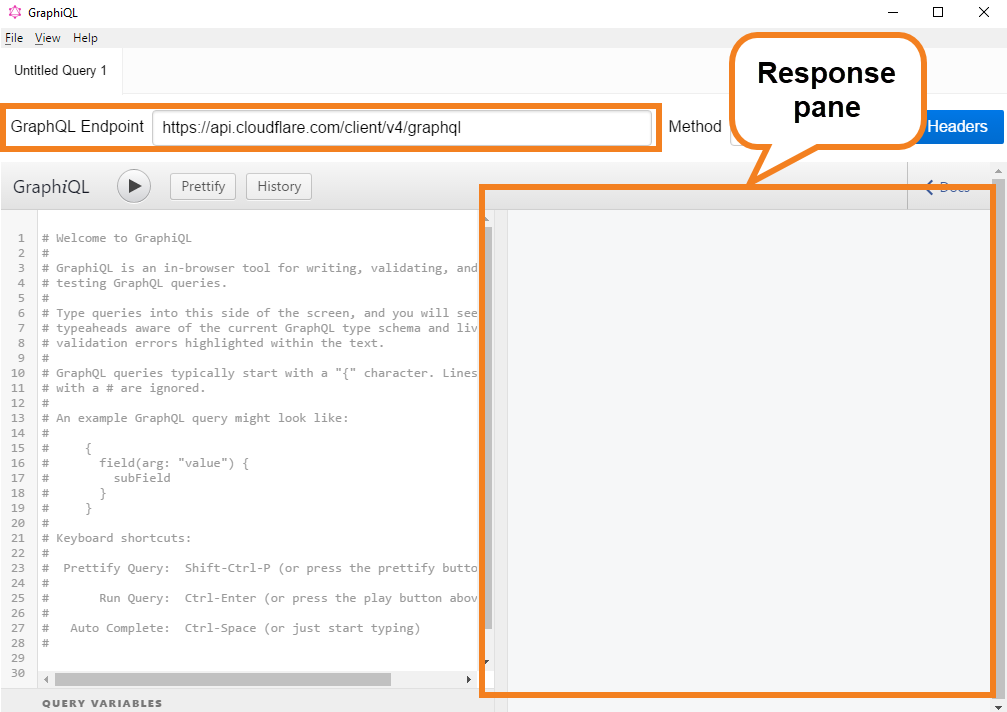
Now that you have configured authentication with a Cloudflare API key, you are ready to run queries using GraphiQL.