CrowdStrike
Feature availability
| Operating Systems | WARP mode required | Minimum WARP version required | Teams plans |
|---|---|---|---|
| macOS, Windows | WARP with Gateway | macOS: 1.4.27, Windows: 1.4.25.0 | All plans |
Cloudflare for Teams can check if CrowdStrike is running on a device to determine if a request should be allowed to reach a protected resource.
Configuring the Cloudflare integration
Before you start, make sure CrowdStrike installed on your machine.
On the Teams dashboard, navigate to My Team > Devices > Device posture.
Select +Add.
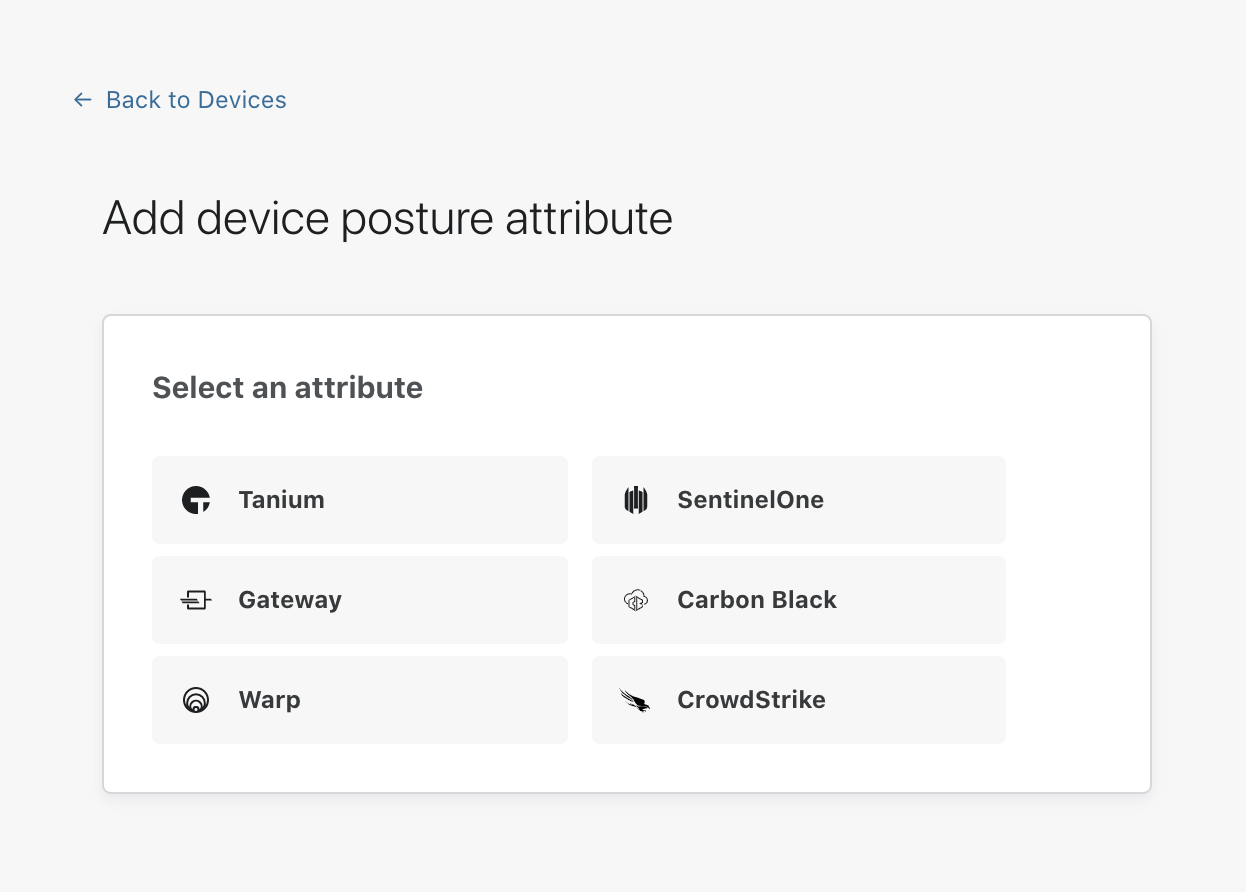
Select CrowdStrike.
You will be prompted for the following information:
- Name: A unique identifier for this CrowdStrike device posture check
- Operating system: You’ll need to configure one posture check per operating system (macOS and Windows currently supported)
- Application Path: Enter the full path to the CrowdStrike process to be checked (for example,
c:\program files\CrowdStrike\CrowdStrike.exe) - Certificate thumbprint (optional): The thumbprint of the publishing certificate used to sign the binary. This proves the binary came from CrowdStrike and is the recommended way to validate the process
- SHA256 checksum (optional): Used to validate the SHA256 signature of the binary. This verifies the binary exactly matches the one you expect to be there. Note: do not fill out this field unless you strictly control updates to CrowdStrike, as this will change between versions
Once you have configured your CrowdStrike instance, you can then add CrowdStrike device posture checks to any application protected by Access.