Lists
With Teams, you can create lists of URLs or hostnames to reference when creating Secure Web Gateway policies . This allows you to quickly create rules that match and take actions against several items at once.
You can create a list by:
Creating a list from a CSV file
If you’d like to test how this feature works, here is a sample CSV file . You can upload it to the Teams dashboard following the instructions below:
- On the Teams dashboard, navigate to Gateway > Lists.
- Click Upload CSV.
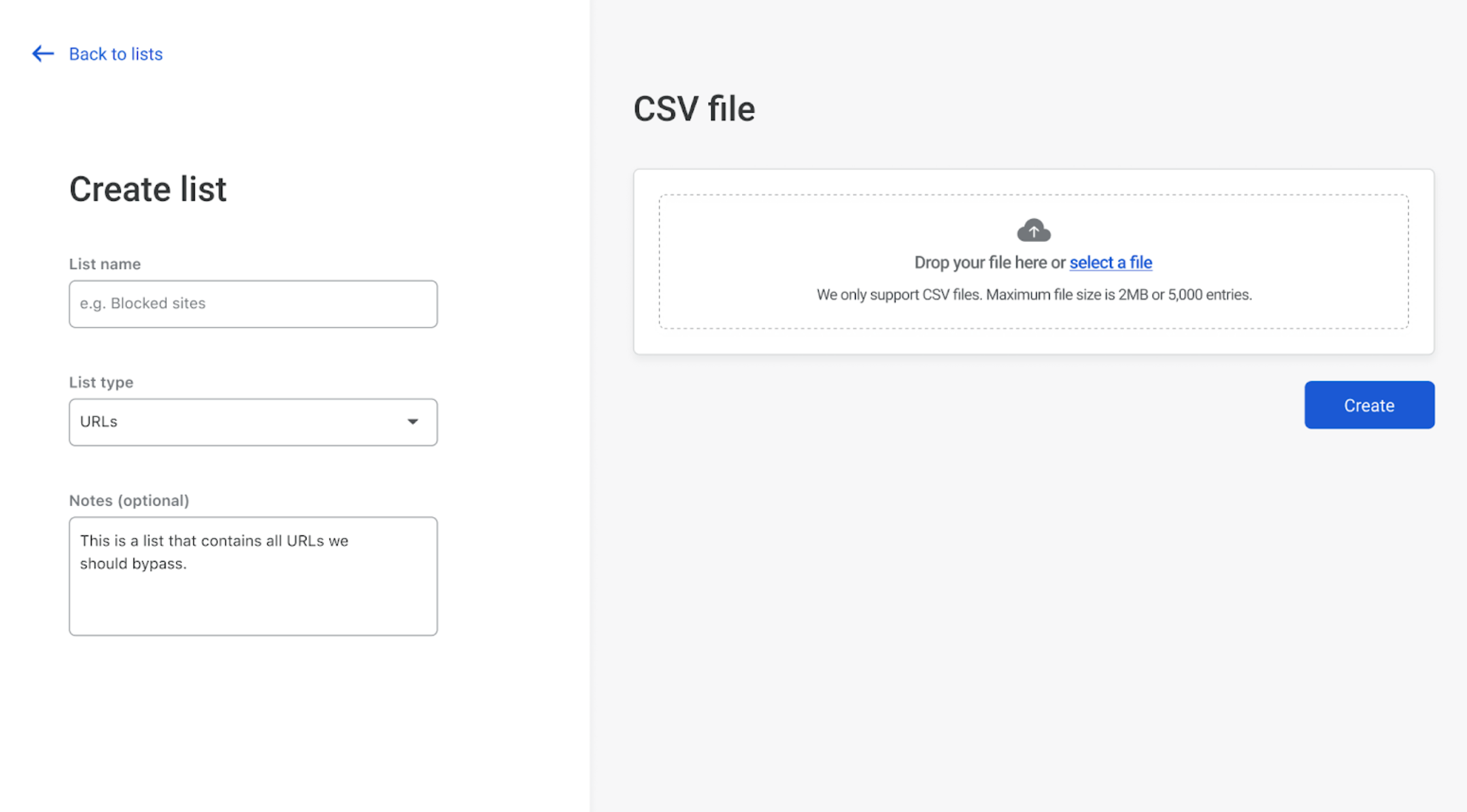
- Next, specify a List name, enter an optional description, and choose URLs as the List type.
- Drag and drop a file into the CSV File window, or click Select a file.
- Click Create.
Your list will now appear in the Lists page.
Creating a manual list
- On the Teams dashboard, navigate to Gateway > Lists.
- Click Create manual list.
- Next, specify a List name, enter an optional description, and choose URLs as the List type.
- Enter your elements manually in the Add entries field.
- Click Save.
Editing a list
In the Lists page, locate the list you want to edit.
Click Edit. This will allow you to:
- Edit your list details (name and description) by clicking on the three-dots menu to the right of your list’s name.
- Delete the list by clicking on the three-dots menu to the right of your list’s name.
- Delete individual entries.
- Manually add entries to your list.
Once you’ve edited your list, click Save.